Using Image Effects in Silhouette Studio®
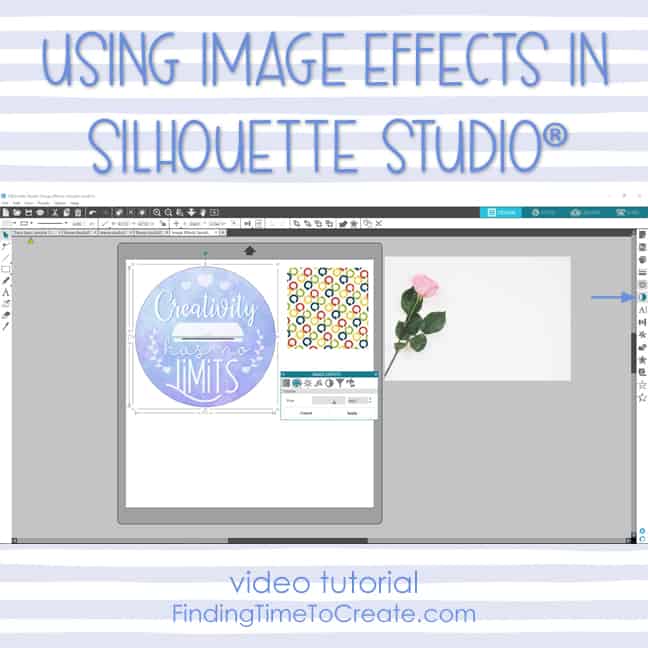
This is a less-known feature that’s been around a while, and I sure like having it! Watch my video tutorial below for learning how to use Image Effects on photos, patterns, and print & cut designs to recolor, brighten, add contrast, desaturate, and more.
P.S. I’m trying to post these video tutorials I’ve been creating for Silhouette America’s YouTube channel on my blog as separate posts so specific topics can be Pinned and found, but you can visit my Silhouette Lessons page to find every video I’ve made to date.
I’m a little behind on my blog, but that’s because I’m devoting so much time to creating these videos for you!

Is Image Effect only available in the latest update, 4.1? I have 3.7.
Good question, Nancy! Actually, it became available way back in version 3.3 but it used to be called “Shader Effects.” The icon in v3.7 is at the top of the screen to the left of the “Offset” icon. “Shader Effects” looks like a pentagon shape with radial lines and a blue pointer and blue dot in the center. The sliders and options are basically the same as in this video.